
TABLE OF CONTENTS
From the Users Page
For a detailed look at filtering lists of users, see: How can I filter a list of users?
Step 1
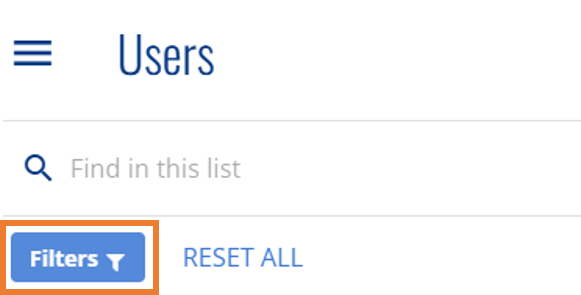
From the Users page, select the filters icon.
Step 2
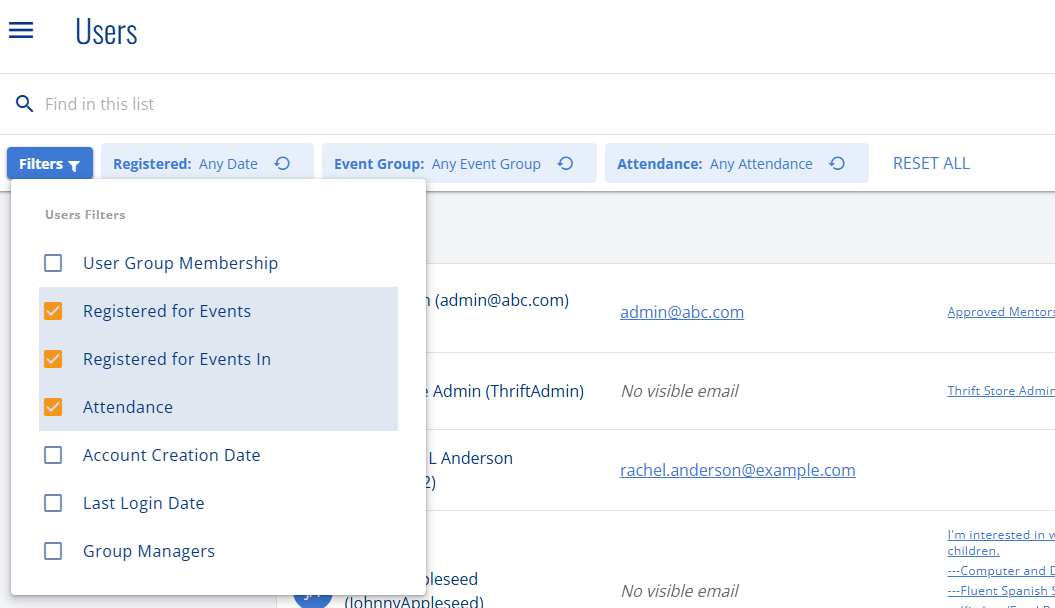
After expanding the filter dropdown, select which filters you'd like to use. This adds them as items on the top bar.
Step 3
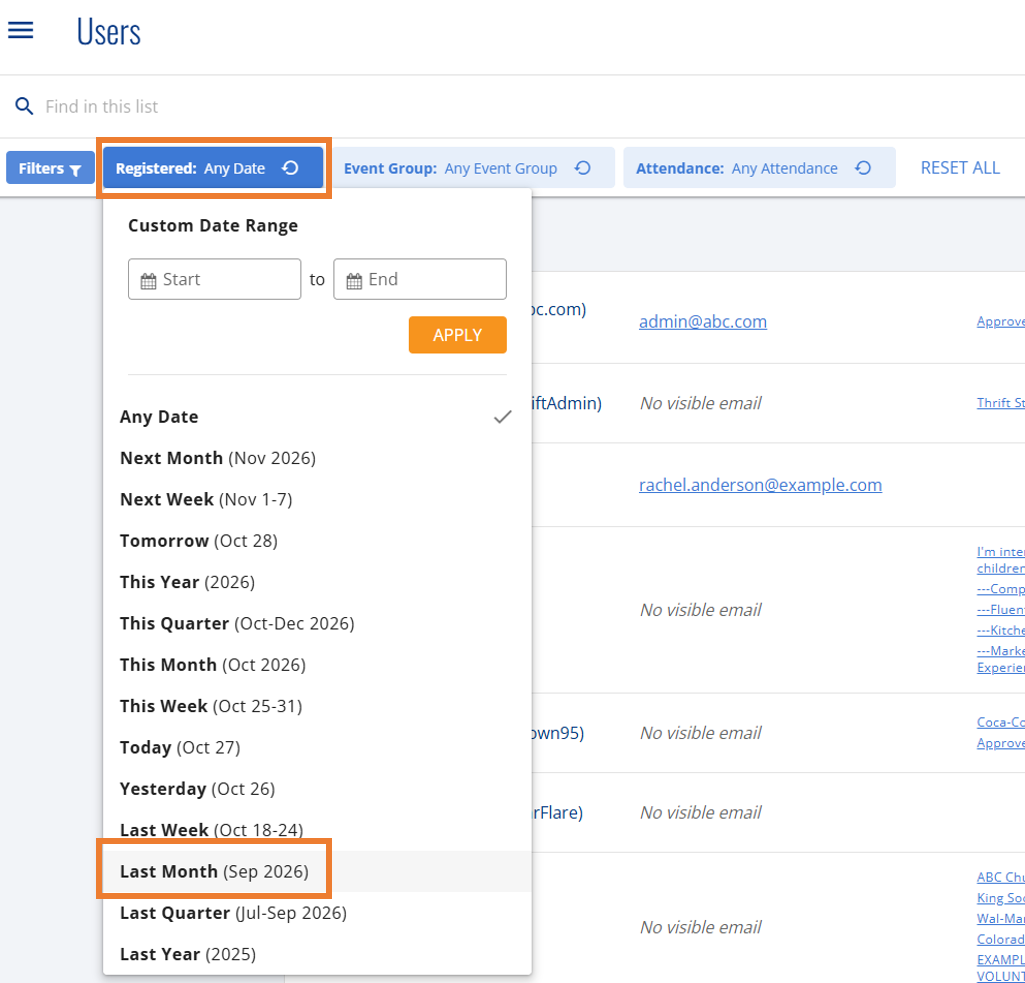
Click on an active filter to set specific parameters.
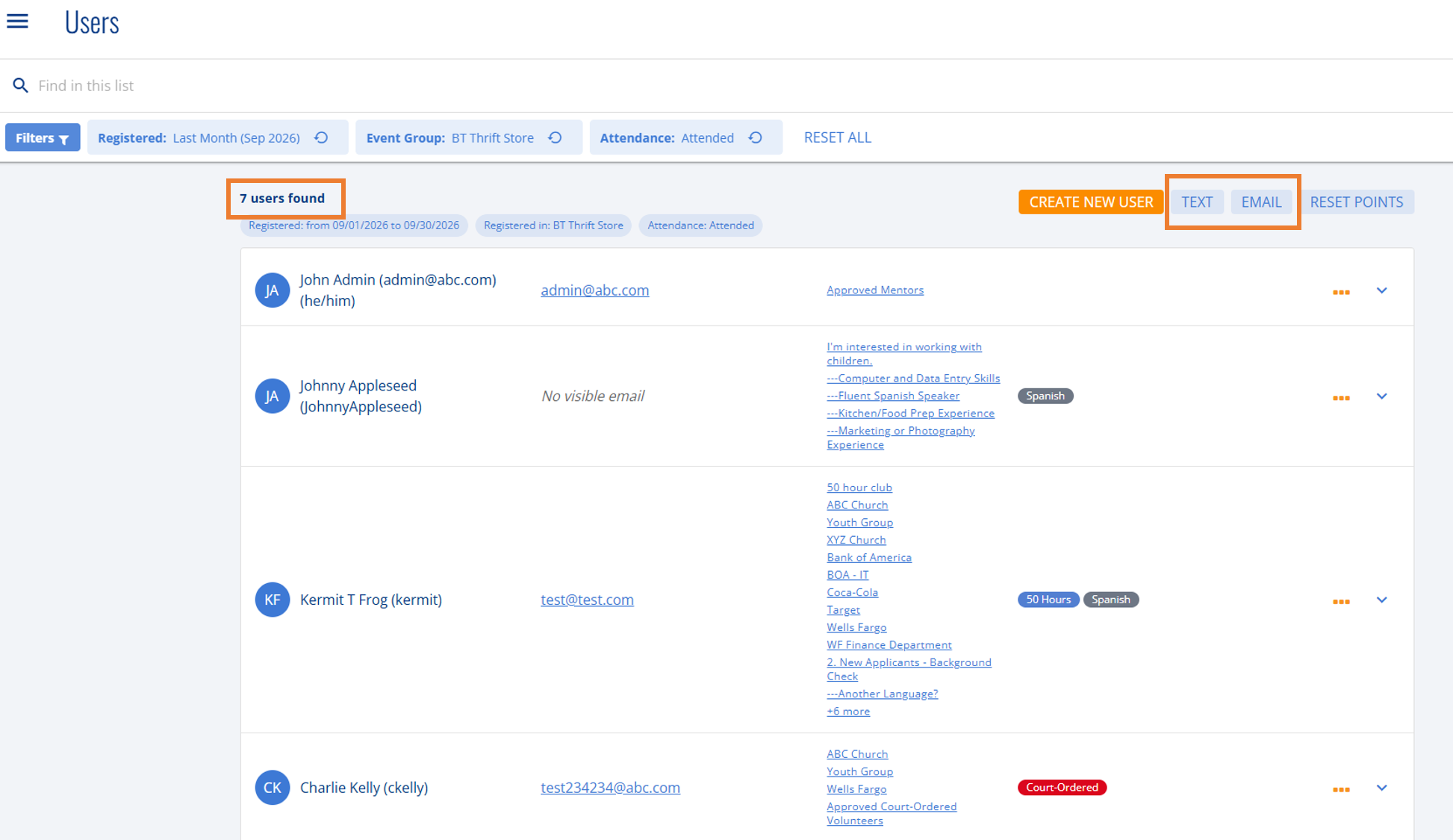
You can now select your desired communication method (Text or Email) to reach out to those volunteers!
From the Events Page
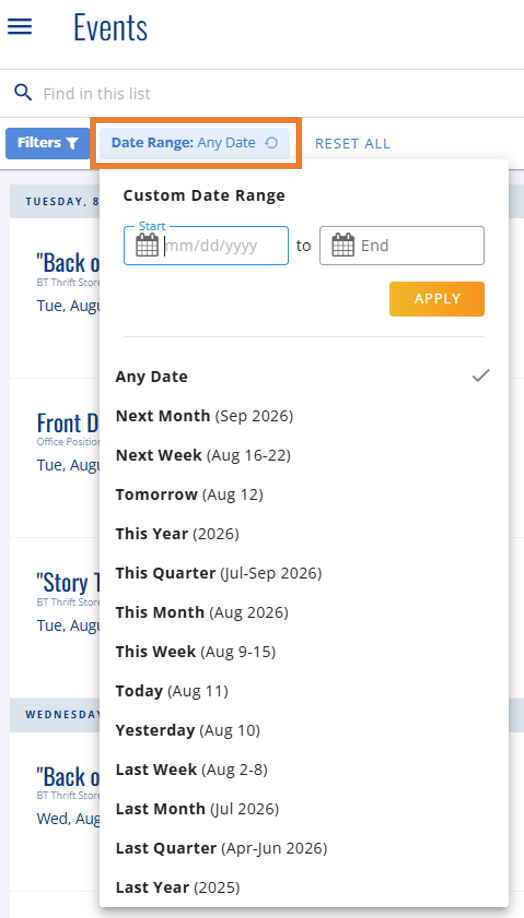
Navigate to the Events page. To adjust the date range of events displayed, click the 'Date Range' field to refine:
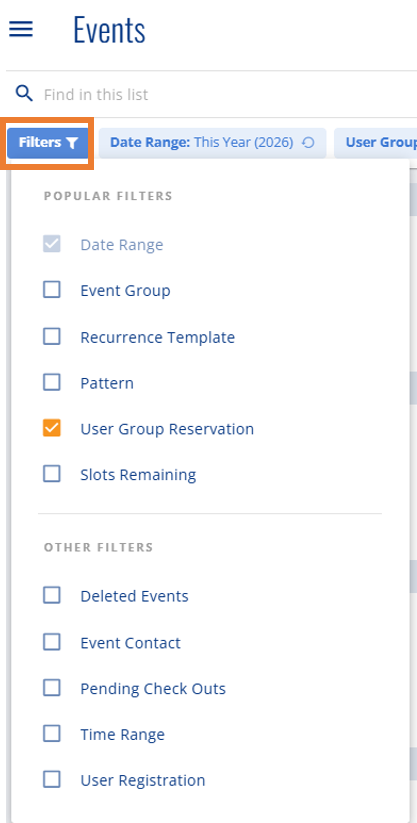
To filter other variables, click the filter icon and check the boxes to add various filters to the top bar:
Once a filter is added, click on it from the top bar to refine it further:
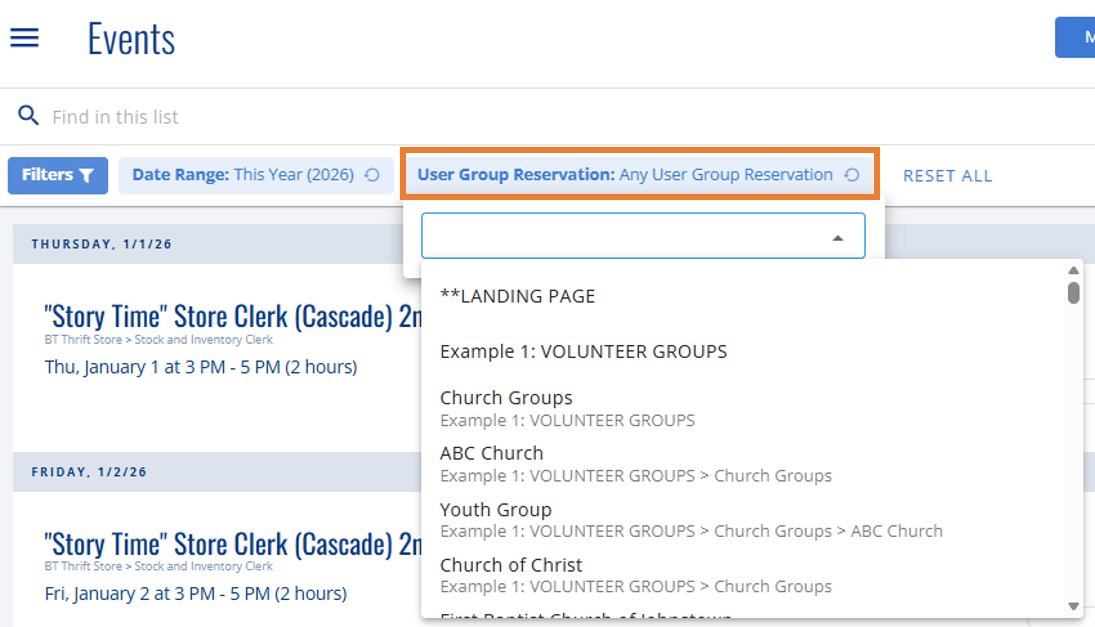
Expanding this filter allows for new ways to sort and communicate with volunteers. This example would allow for emailing all users registered for events under a reservation for 'First Baptist Church of Johnstown' for the current year.
Stack filters together to further refine your list.
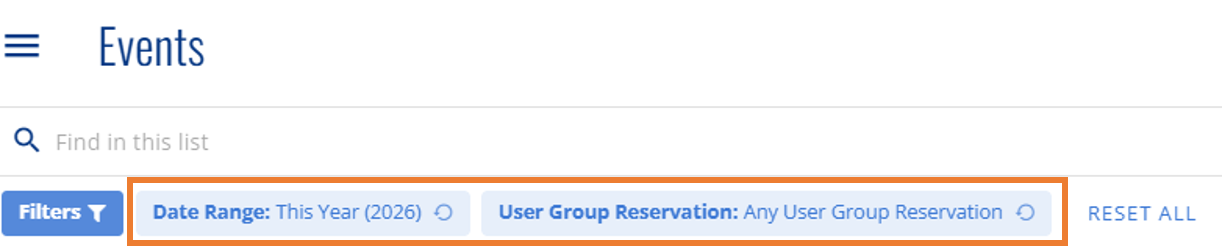
Once the options are configured, you can now select your desired communication method (Text or Email) to reach out to those volunteers!
NOTE: In this example, the filter would only email/text users who are registered under the selected User Group's reservation. Should other groups or Unaffiliated users participate in the same events as 'First Baptist', they would not be included in the communication.
From the Custom Users Report
Reports > Custom Reports > Users

The Custom Users report has the option to send an email.

This allows for filtering more specific lists for the purpose of communication. In the image below, the list is filtered to only volunteers in California, 18 years of age or older, who have completed more than 5 hours of volunteering.
