
This video features an older interface. The process and features remain the same but look has changed.
This video will be remade soon.
User group reservations allow you to silo off part or all of an event for members of a particular user group only. You can reserve slots for a user group within the Registered Users page of a specific event.
Step 1.
From the Events page, click on the event you want to make a reservation for.
Step 2.
Click on the Add Reservation button (Figure 1).
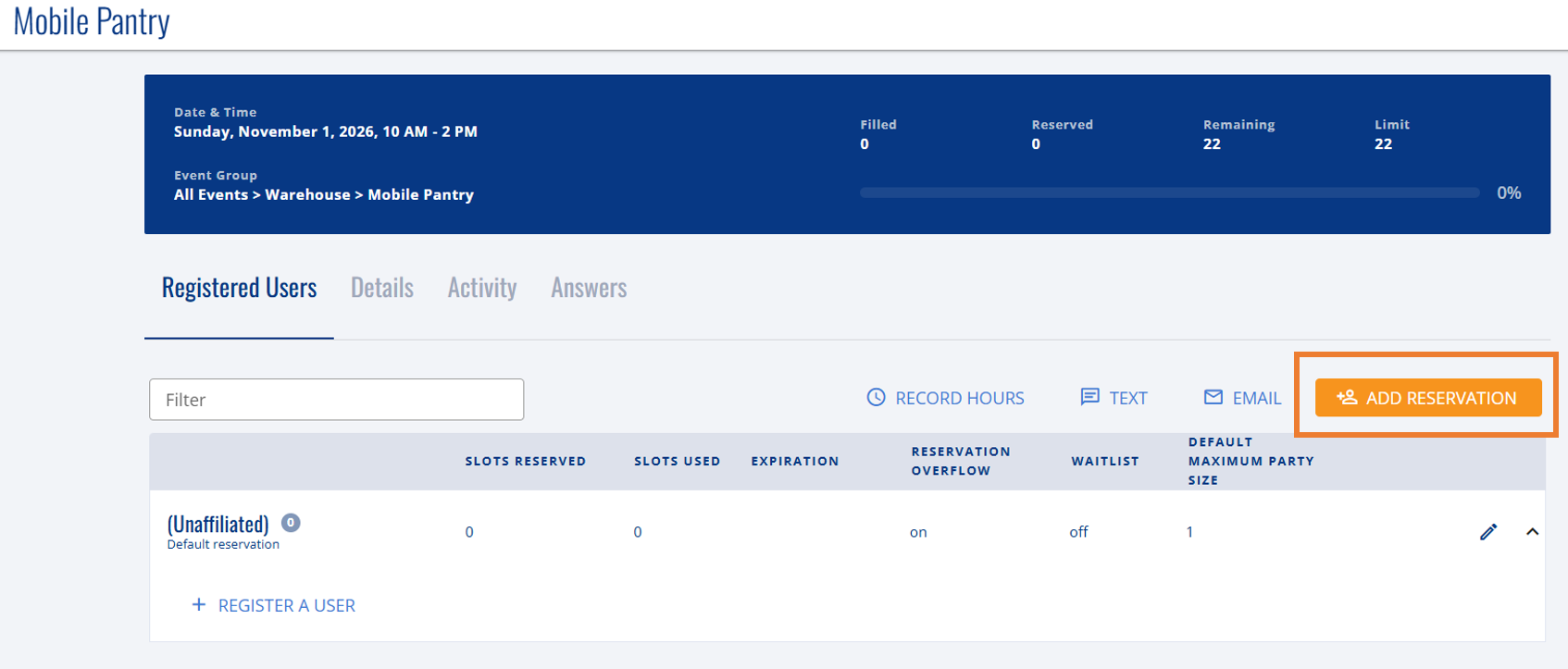 Figure 1. Click on the Registered Users page of the event you'd like to reserve slots on.
Step 3.
You should now see the Add Reservation popup (image below). Begin typing the name of the User Group into top field and select the matching group.
Enter the number of slots you want to reserve in the Slots Reserved field. This is the number of slots you want to guarantee that ONLY members of the selected user group are able to register for. Members who do not belong to the selected user group will not be able to sign up for these slots. For instance, if your event has a total Event Slot Limit of 22 and you reserve 12 slots for Wells Fargo, 10 slots will still be open to the general public (via Unaffiliated Users).
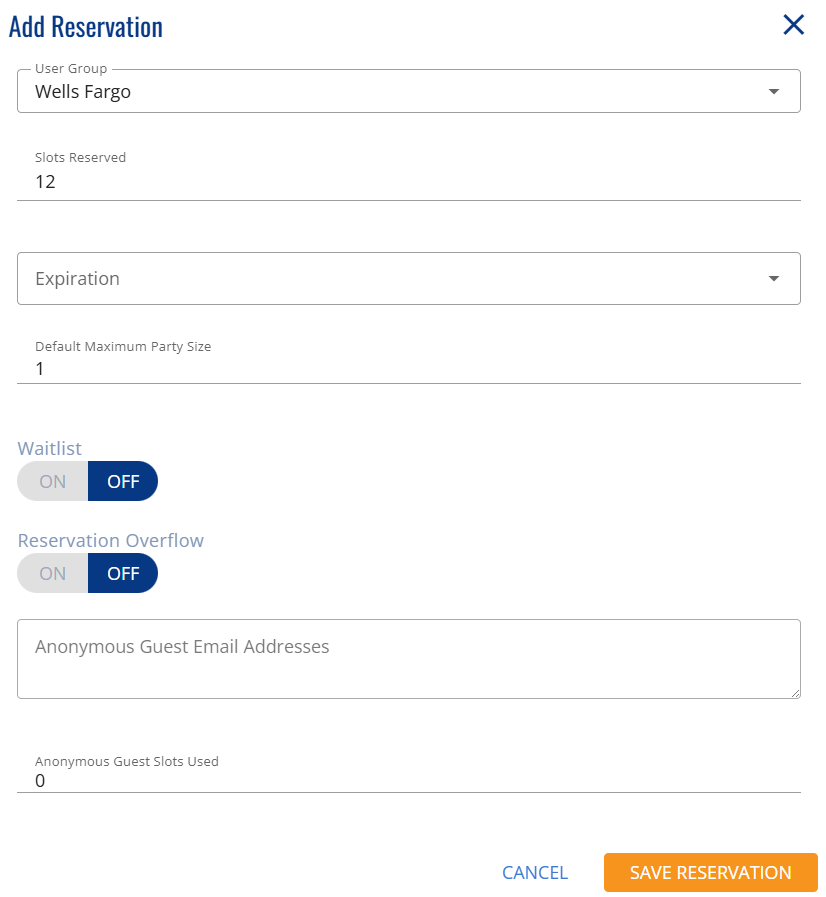
Figure 2. Select a user group, then click the Register User Group button.
Step 4.
Click the Save Reservation button to save your changes.
For more details on this page, please review part 5 of our Admin's Getting Started Guide.
After reserving an event, administrators often want to Create a Custom Landing Page for the User Group.