Users that don’t have a computer or don’t have access to the Internet may need you to manually register them for events. See below for instructions on how to manually register a user or cancel a user registration for an event.
For instructions on registering a user for multiple events at once, please refer to this FAQ: How do I manually register a user for more than one event?
Registering a User from Within an Event
Step 1.
Navigate to the Events page, locate the event name and date, and click on the event for which you'd like to register the user manually.
Step 2.
Near the bottom of the table, click on the Register A User button and type the user's name into the 'Existing User' field (Figure 1). A list of users in the system will appear automatically. Select the correct user from the list and complete any addition fields as needed.
- Max Party Size: The maximum number of slots this user is allowed to take. Most organizations only allow 1.
- Slots: How many slots is this user actually taking up.
- Waitlist: If waitlisting has been enabled for the User Group reservation, the Waitlist toggle will allow you to add the user to a waitlist for the event.
- Hours: The Hours field allows you to enter the hours this volunteer should receive for the event. No time should be inputted should you wish the volunteer to check in at the Kiosk (this option is mainly used for adding volunteers to an event after the event has passed).
- Event Registration Question Answer: This option appears if the event has an Event Registration Question. An admin may enter the user's response.
- Confirmation Emails: The Send Registration Confirmation Email toggle defaults to "No." Selecting "Yes" will not send a confirmation email to the user when they register for the event.
When manually registering users, admins can add users in excess to the Event Slot Limit without the need to increase the Event Slot Limit. Confirmation Emails will never be sent for events that have already ended.
Step 3.
Click on the Save Registration button. The user is now registered for the event.
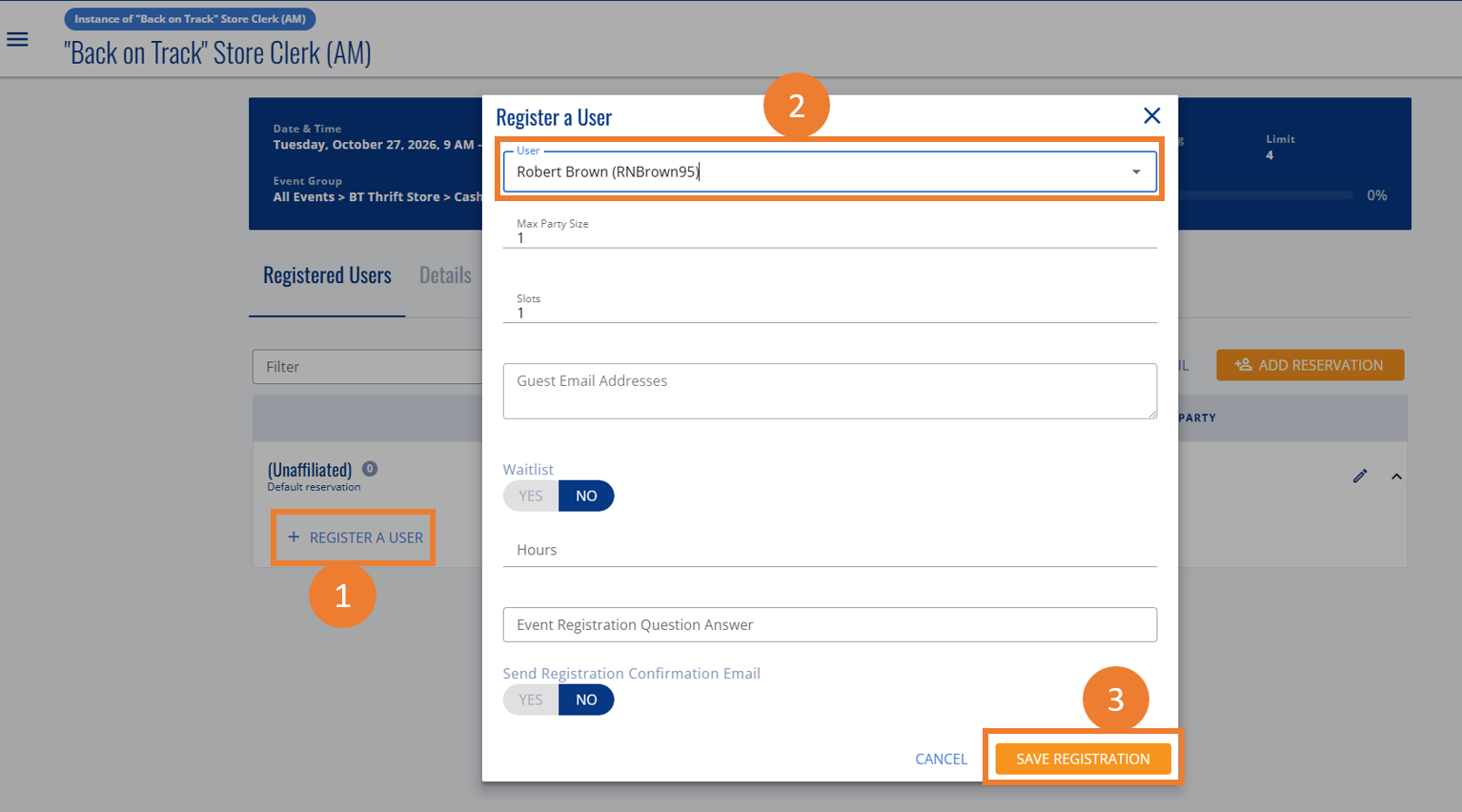 Figure 1. Enter the volunteer's name first, then select the matching user account and click on the Register User button.
Removing a User from Within an Event
Step 1.
Navigate to the Events page, locate the event name and date, and click on the event for which you'd like to remove the user manually.
Step 2.
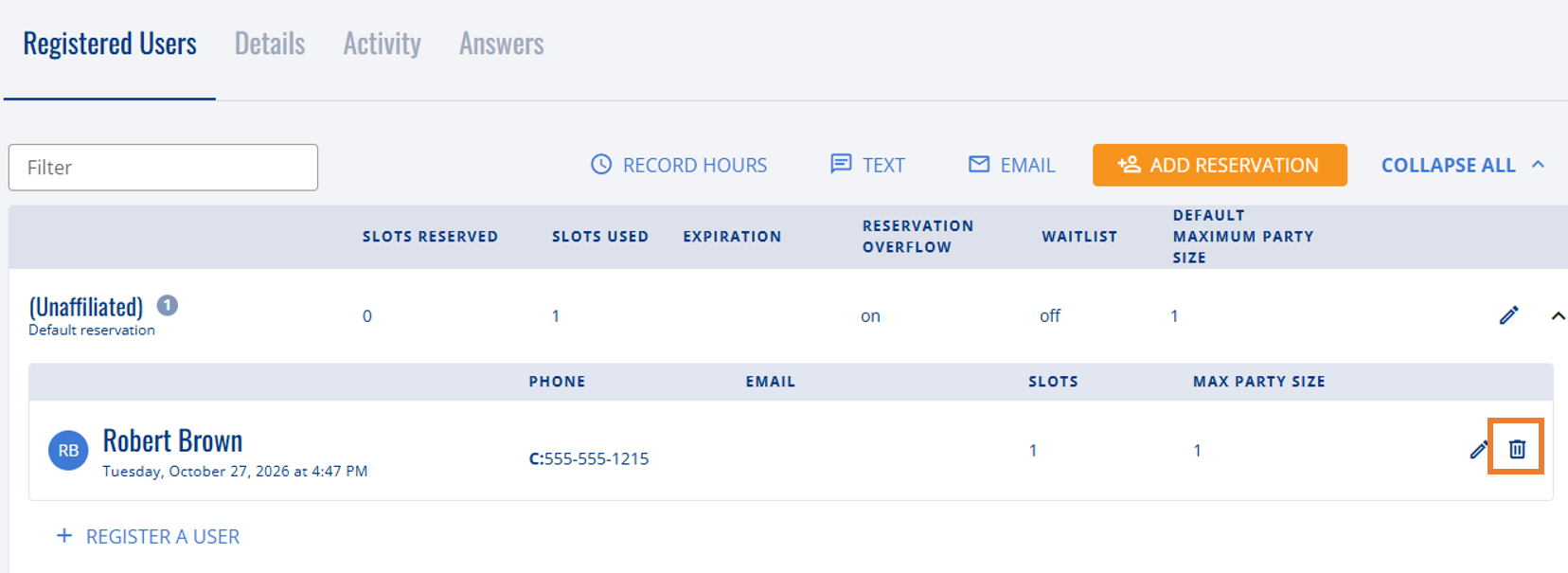
Click the delete (trash can) button to the right of the desired user.
Step 3.
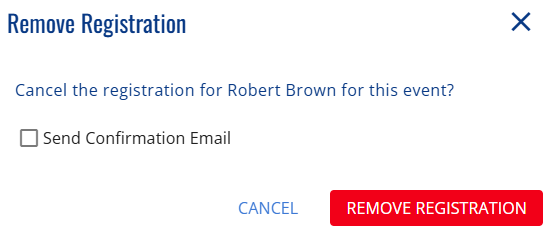
Click the Remove Registration button to remove the user from the event.
The Send confirmation email checkbox defaults to unchecked. When unchecked, the user will not receive an email that they have been removed from the event.